How it works
Three steps, and just one thing for you to do in the BIOS.
-
01
Scan
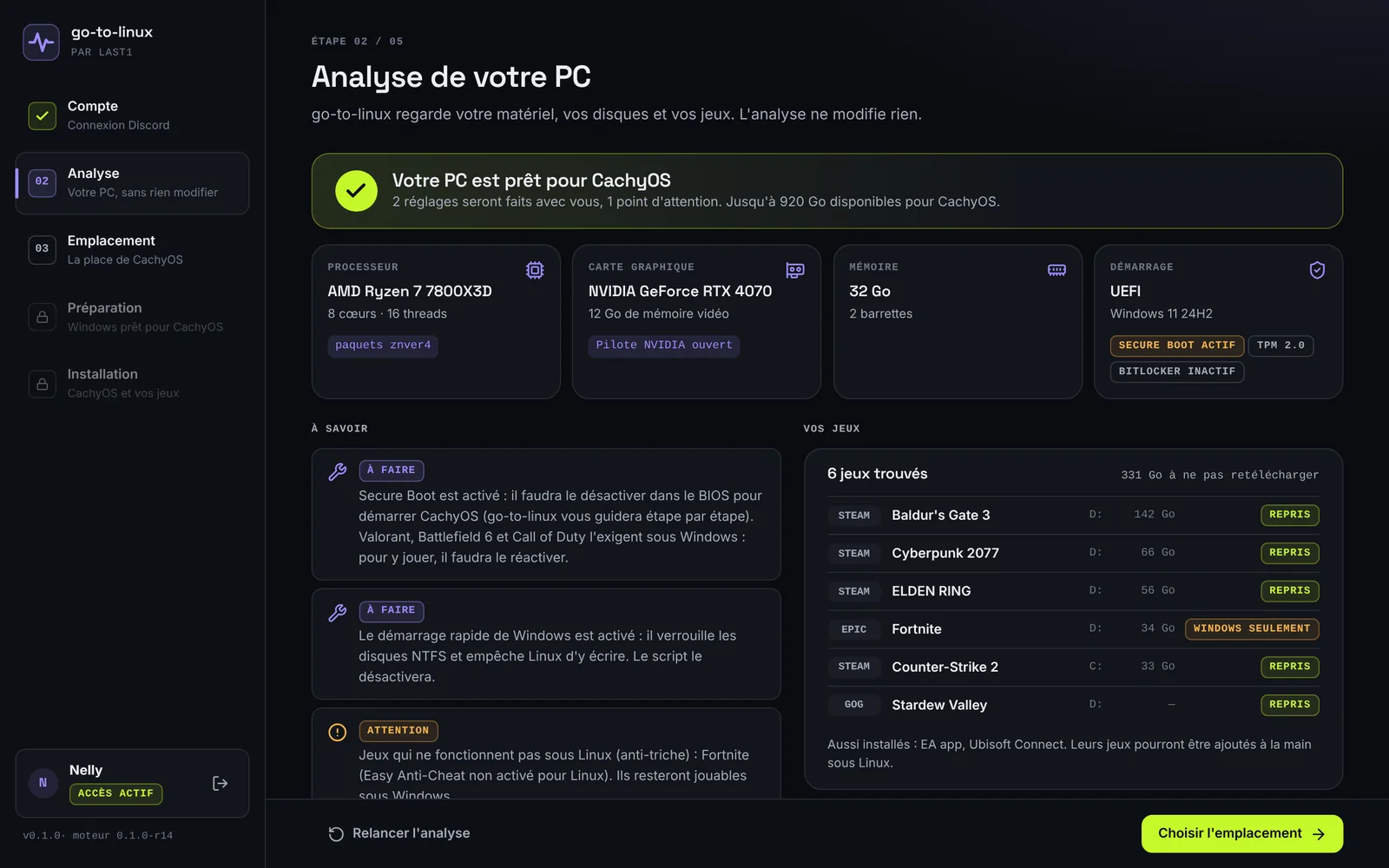
The app examines your PC (processor, graphics card, drives, installed games) and tells you what will work on Linux, before touching anything.
-
02
Prepare
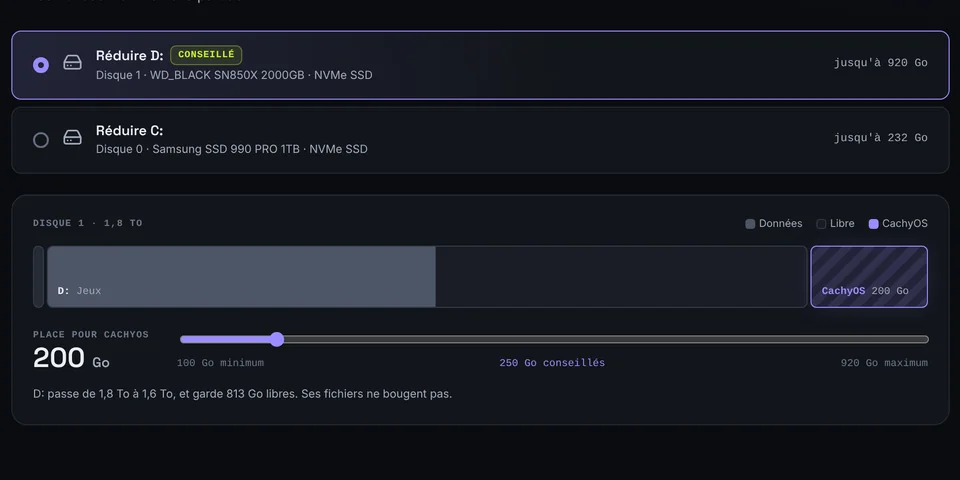
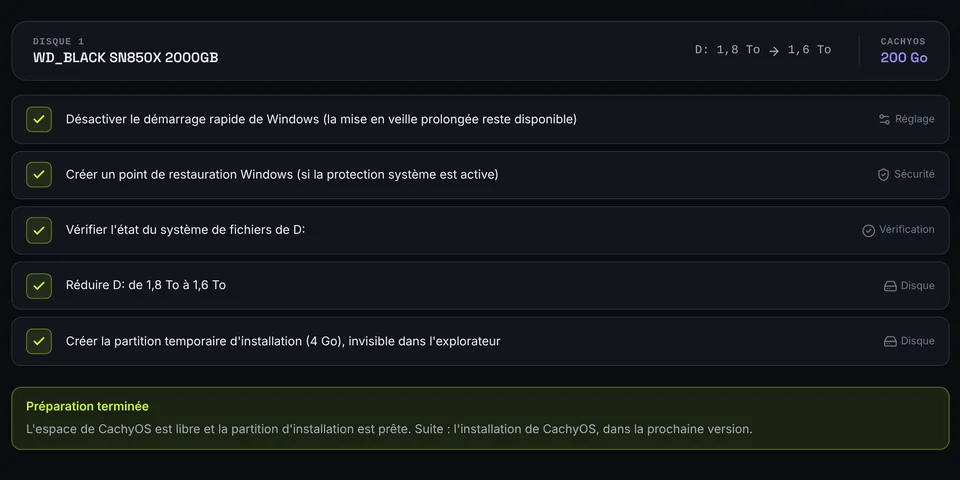
You choose how much space to give Linux. The app frees up that space and gets the installation ready. No USB stick needed.
-
03
Install
After a restart, CachyOS installs itself with the right drivers for your hardware, and audio set up for SoundFence. Every time you boot up, you pick Windows or Linux.
Before you buy
What you need to know, no fine print.
Windows 10 or 11 (64-bit) booting in UEFI mode, 100 GB free (250 GB recommended) and an internet connection during installation.
You need to turn it off once in the BIOS, and the app walks you through it. Valorant, Battlefield 6 and Call of Duty require it on Windows: you'll have to turn it back on to play them.
Some online games refuse to run on Linux (Valorant, League of Legends, Fortnite, Call of Duty…). They stay playable on Windows, and the scan tells you which of your games are affected.
You can uninstall Linux from Windows and get your disk space back.
What about your voice on Discord?
On Linux, SoundFence replaces your Windows soundboard and voice changer. It's available now, and works out of the box on CachyOS.
Frequently asked questions
Could I lose my Windows data?
The app never deletes Windows or your files: it only shrinks one partition, using Windows' own tools, by taking free space. As with any change to a disk, a backup is still recommended.
Do I have to reinstall my games?
No. Your Steam libraries are picked up as they are, and your Epic and GOG games are imported into Heroic Games Launcher.
What if I want to go back?
You uninstall from Windows: it removes Linux and gives the space back to Windows.
Isn't CachyOS free?
It is, and you can install it yourself. go-to-linux saves you the tricky parts: partitioning, drivers, the USB stick, getting your games back.