Everything you need to talk and play
A studio desk on your desktop: sounds a click away, and live voice effects.
Virtual mic
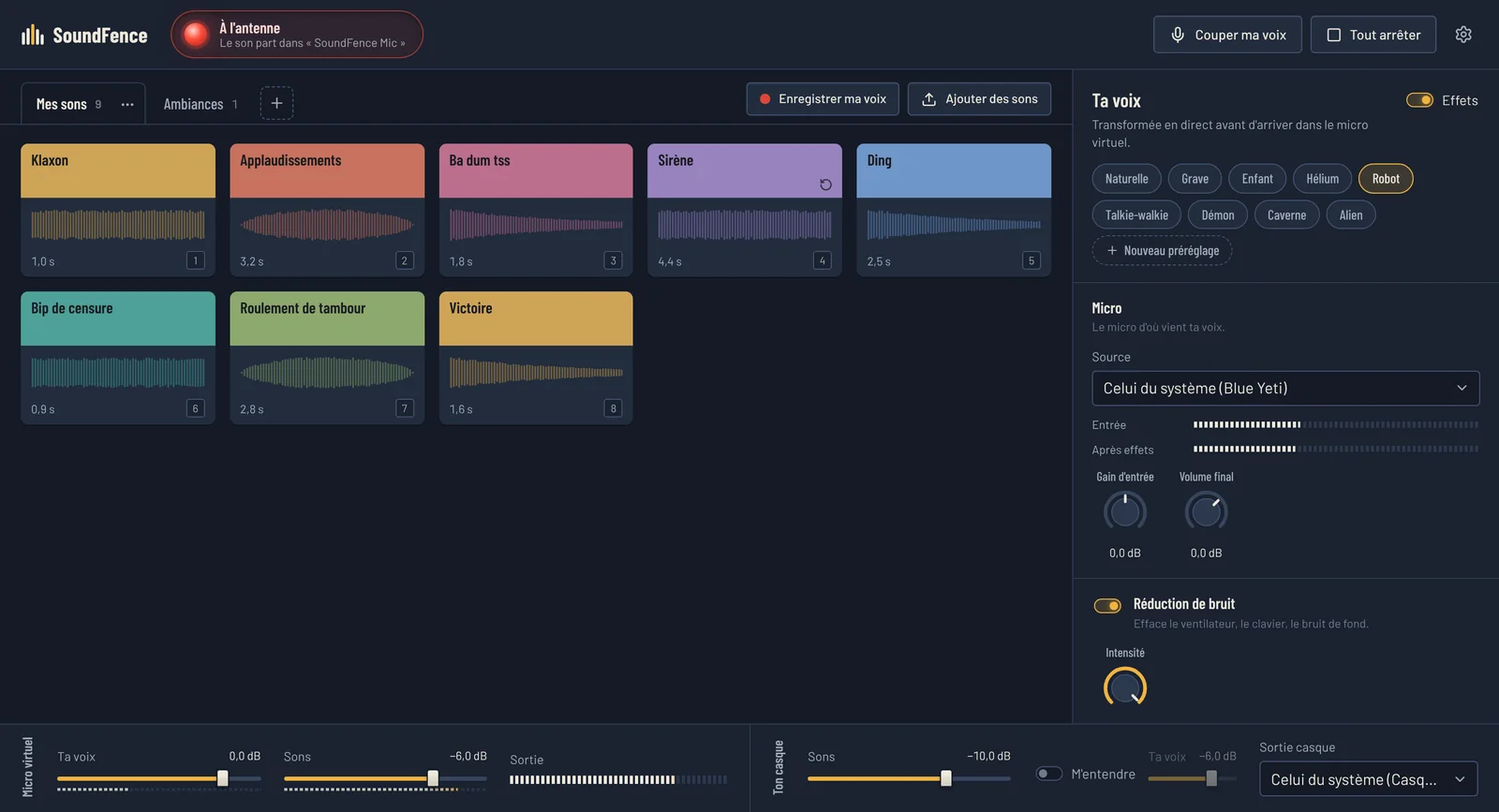
“SoundFence Mic” shows up as a microphone in all your apps. The light turns red, “On air”, as soon as sound goes out.
Soundboard
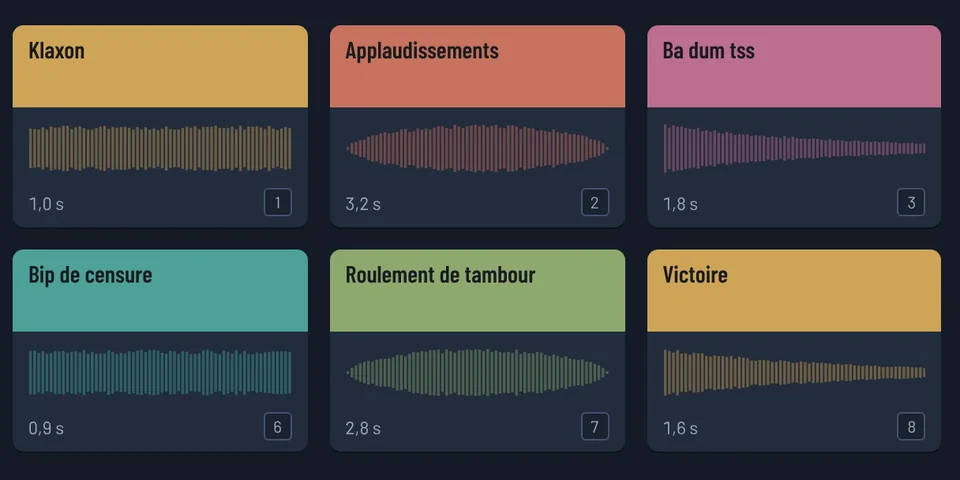
Pages of sounds laid out as colourful carts, layered playback, looping, per-sound volume, and headphone-only preview (Shift + click).
Voice effects
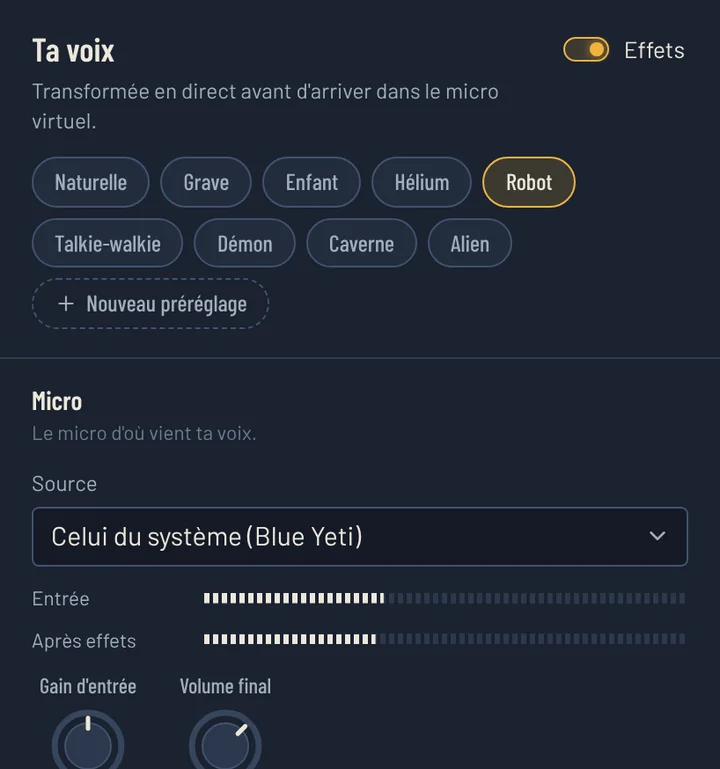
Noise reduction (RNNoise), noise gate, pitch and timbre, robot, walkie-talkie, echo, reverb, and your own presets.
Recording
Record your transformed voice and add it as a new sound, with a single shortcut.
Global hotkeys
Control it from the command line: soundfence play klaxon. Bind it to a key in Hyprland, KDE, GNOME or Sway.
Always ready
An icon in the system tray: the virtual mic stays available even with the window closed.
System requirements
The gaming Linux that go-to-linux installs: SoundFence works there with zero setup.
Arch, Fedora 42+, Ubuntu 25.04+, Debian 13 and openSUSE Tumbleweed work too. Ubuntu 24.04 and Linux Mint 22 are too old.
AppImage for all these distributions, plus .deb (Debian, Ubuntu) and .rpm (Fedora, openSUSE) packages.
Still on Windows?
go-to-linux installs CachyOS alongside Windows without losing your games, with SoundFence ready to go. It's coming soon.
Frequently asked questions
How do I use it in Discord?
Launch SoundFence, then in Discord (Settings → Voice & Video), pick “SoundFence Mic” as your input device. Your sounds and your transformed voice come through there.
Does it add latency?
Not noticeably: audio processing runs in a real-time thread, with no waiting, right inside the Linux audio system.
Are my sounds sent over the internet?
No. Your sounds and settings stay on your PC; SoundFence only contacts the server to check your licence. New versions are downloaded from “My account”.